There is a misconception about digital photography that the more megapixels, the better the image quality. Most people don’t realize that image quality has to do with both the amount of pixels and the size of the image sensor.
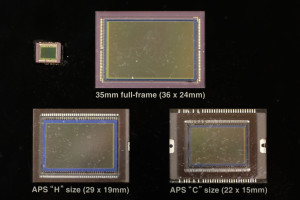
Sensors from different types of cameras. Top left – Typical Point and Shoot Sensor Top Center – Full Frame Sensor Bottom Left – APS-H Sensor Bottom Right – APS-C Sensor
The image sensor in a camera is the digital equivalent of film. Light comes through the lens and hits the image sensor, where millions of pixel wells capture what color of light is entering that location. The larger the sensor size, the larger the pixel wells, the more accurate the information. The higher the megapixel, the more pixel wells, resulting in higher image resolution. Do not confuse image resolution with image quality. The size of the image sensor affects the amount of noise, the depth of focus, and the overall sharpness of the image.
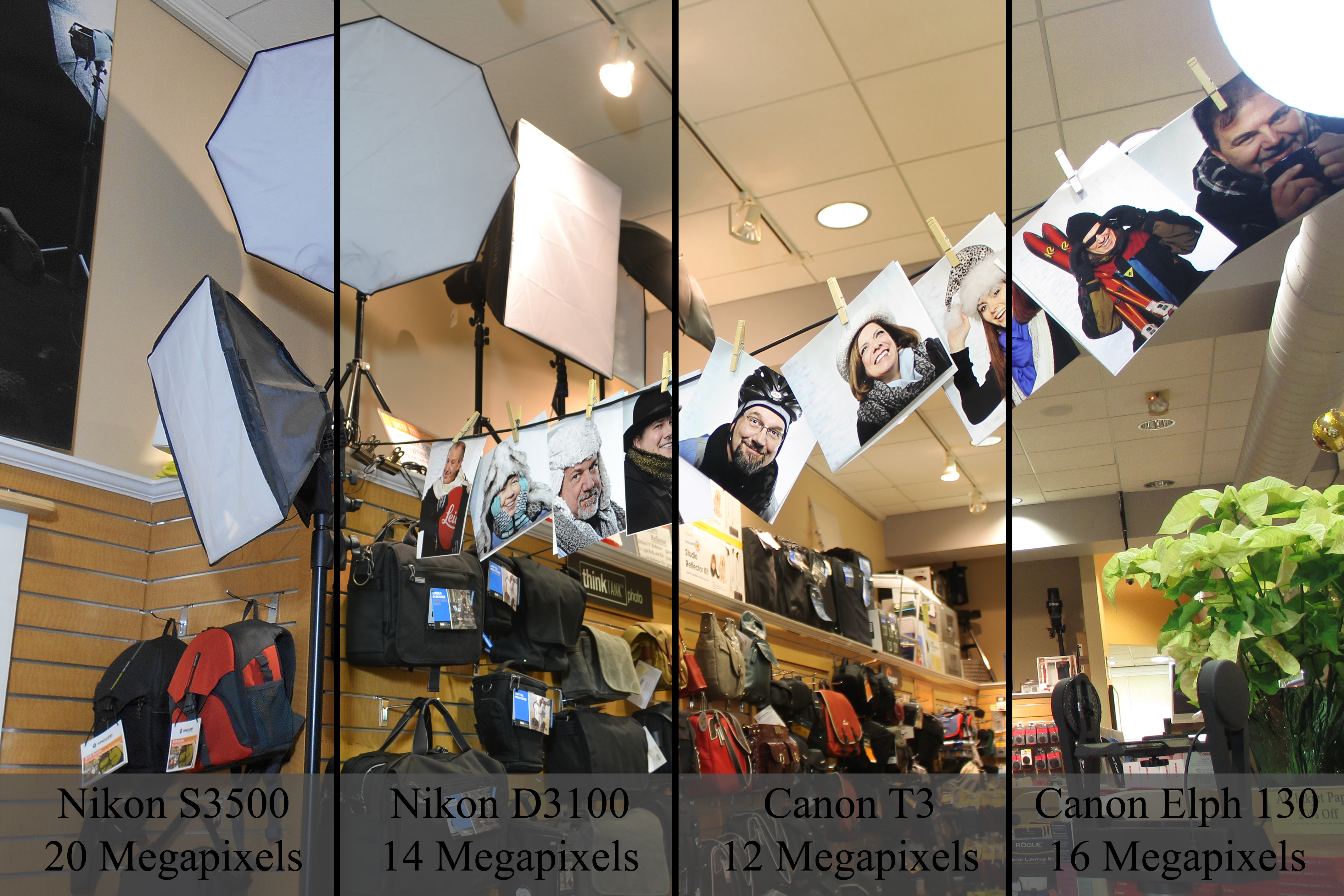
In the photos, we see four different sensor sizes. There are currently around ten different image sensor sizes. We also see the difference in image performance based upon sensor sizes. This comparison shows two high megapixel point and shoot cameras and two lower megapixel SLR cameras. All the photos were shot with near identical camera settings at ISO 100. The images using SLR cameras were shot with their normal kit lens, the 18-55mm f/3.5-5.6. Immediately you can see a difference in clarity, noise, and color.
Comparing High Megapixel Point and Shoot Cameras (Nikon S3500 and Canon Elph 140) with Lower Megapixel SLR Cameras (Nikon D3100 and Canon T3)
So why should you buy a camera with a smaller sensor?
Well, the smaller the sensor, the smaller the camera. It’s definitely convenient to own a camera which fits in your pocket. Plus cameras with smaller sensors can have much greater zoom lengths in an easy, portable size. Current Point and Shoot cameras are still performing better then current cellphones due to the size of their sensors. Point and Shoot Cameras have sensors varying between 1/2.3-inch and Apple iPhone 5s has a sensor which is 1/3-inch. Plus, Point and Shoot cameras have real zoom lenses. Cell phones use digital zoom, which degrades your image quality.
Realize that the larger the camera you carry, the better the image quality. If you are someone looking for quality, look into SLR cameras. Looking for help finding which camera is right for you? Check this post here.
We are excited to announce that we have received our shipment of Go Pro Hero 3+ Silver and Black editions. Quantities are limited so give us a call to reserve yours!
The weather outside is frightful, but the pictures can still be delightful. Online tips not your favorite way of learning? Stop in Saturday, December 21st for our Focus Sesson, “Winter Photography”.
We’ve compiled several previous blog posts filled with tips and tricks to get the best out of your camera this winter.
Shooting in the winter (especially when snowing, sleeting or below freezing) can certainly be a challenge.
Here are a few pointers to make your winter shooting that much easier.
Batteries – The number of frames you can take can drop dramatically the colder it gets especially below 30. When you plan on shooting outside for an extended period of time keep one or two spare batteries in a coat or pants pocket that is warm and close to the body. As soon as your low battery indicator flashes stop shooting and rotate a warm battery into the camera.
Rain, Sleet and Snow – Always keep an inexpensive plastic bag in the bottom of your camera bag. If you get caught out in precipitation simply put your entire camera bag inside and make your way back. If you need to shoot in rain, sleet, or snow you can always purchase an Aquapac or any protective rain-sleeve to protect your camera and lens from damage.
Polarizing Filters – Great for reducing glare especially off of snow and glass. Colors always look better when glare is reduced. Don’t stack your filters and remember to remove your polarizer when it gets darker or you move inside. Always remember – a polarizer can cut the amount of light entering the lens in half ( 1 f-stop).
Hand Warmers – this years addition to the list comes from outdoor sports enthusiasts. Available at most sporting goods stores and for about $2 can keep your hands warm for 4 – 6 hours. Special versions are available to keep your toes warm as well.
Why are my snow pictures dull grey?
Here’s the first in some winter picture taking tips that we are putting together. A common complaint we hear when people bring their winter pictures in is – “my pictures look dull,” “the snow looks grey, not white.” Read on for the short and the long answer.
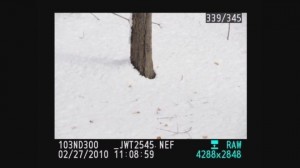
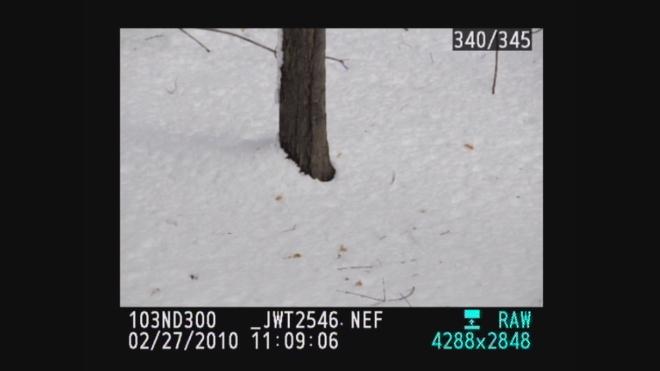
The picture you see is the one above with white snow . . .
The picture your camera captures has grey snow as shown below.
So the question is – How do I get white snow?
The short answer is you need to overexpose by using the Exposure Compensation +/- feature on your camera. Using the exposure compensation automatically makes this adjustment so your camera still can remain fully automatic. In the case of a Nikon you would press the +/- button while rotating the control wheel until +1.0 shows in the display. Your owners manual will explain this in detail or feel free to stop by the store to learn how to make the settings on your camera. Be sure to take some test shots so you get the hang of how this works. If less of your image is taken up with the snow you can try the + 0.7 or + 0.3 setting to reduce the brightening effect.
After taking your snow photos just remember to turn the exposure compensation +/- back to zero.
The more technical answer
This is all caused by a camera’s meter system which is designed to see “18% grey” ( the solid gray image to the left ). Essentially anytime you take a picture that is predominantly white or black the camera will make the wrong exposure. Since the cameras meter can only see grey, an “average scene”, we only need to make adjustments when our scene is predominantly white or black. Luckily 98% of what most of us shoot are scenes with average lighting values and need no adjustment.
Predominantly white scenes ( think Snow, white sand beaches, clouds )will be moved toward grey so we must over expose from .5 – 1.5 stops to get true white by using the +/-.
Predominantly black scenes ( think black cars, black buildings, black sand beaches )will be moved toward grey so we must under expose .5 – 1.5 stops to get true black by using the +/-.
A future tutorial will explain how to get perfect exposures using a grey card.
Using histograms to further understand
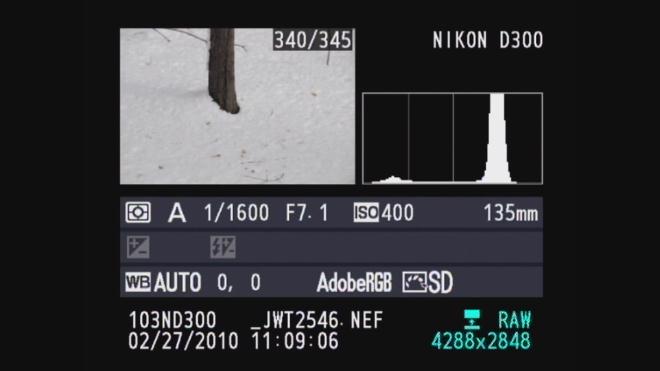
For those familiar with histograms we can further look into diagnosing our exposure. The histograms are shown below with both our camera exposure and with exposure compensation set on + 1.0. Histograms are available in almost any digital camera including point and shoots and most imaging programs like Photoshop Elements.
A histogram is just a map of the tonal values in our image from black (left most point) to white (right most point) with the height representing how much of the image is at a particular level of brightness. Your histogram will look the same in camera and when you open that image up in your imaging program.
^Black Middle^Grey White^
In the grey snow example above our histogram has a good deal of room before the white point on the right so the image represented by this histogram is a shade of grey not white. By overexposing one stop ( +/- +1.0) the camera automatically adjusts and allows 1 extra stop or twice the amount of light. As you can see from the histogram below we still have a small amount of room before the white point (this room indicates we have not blown out our highlights. If this histogram started all the way to the right and did not build to a peak, this would indicate over exposure and blown out highlights. The fix would be to reduce the exposure compensation from +1.0 to +0.7 and check again. The peak will move to the left each time you reduce your exposure. More on histograms in an upcoming tutorial.
What to Do With Christmas Lights
Whether you’re trying to get the perfect shot of your decorated home, taking family photos in front of the tree, or using the lights to get an interesting photo, Christmas Lights can be tricky to photograph. Each situation requires different gear and a different camera set up.
Photographing Your Home
With photos of homes lit by Christmas lights, you’re going to want a closed down aperture, a slow shutter speed, and a low ISO. With a closed down aperture(F/11, f/16), you’ll get plenty of depth of focus so everything from your windows to the trees in the distance will be in focus. The slow shutter speed will allow you to properly expose your image, and the low ISO will keep noise in your photo to a minimum. Because your shutter speed with be slower then 1/60th of a second, you’re going to need a tripod to hold the camera steady. For a unique look, try throwing a colored gel on your flash and setting it off once during the photo.
Photographing your Family In Front of Christmas Lights
To take the best photos involving both your family or another subject in front of Christmas lights involves using a flash. Place the camera on a Tripod and set the flash to rear curtain sync. This will fire the flash at the end of your photo. Allowing a slow shutter speed to expose the lights, then the flash to illuminate your subject in the front of the image. To join the picture, use a wireless remote or set the camera to a 10 second delay.
Using Christmas Lights to Create An Interesting Photo
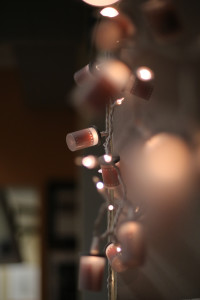
BCC Employee Juline Moreland’s creative recycling of film canisters says both “Happy Holidays” and “Don’t Forget Your Camera”.
One of my favorite aspects of Christmas lights, are how they look when they fall out of your depth of focus. Each small bulb becomes an otherworldly glowing ball of light. Use a lens with a wide aperture (f/1.8, f/1.4) to allow only a sliver of focus in your image. Thus creating an interesting and beautiful background to your subjects.
We hope you’ll enjoy this beautiful weather, but remember to stay safe. Should you have any questions of comments feel free to stop in at Bergen County Camera, comment on this post, or message us on our Facebook page.
Quarkie headphones, recently featured in Huffinton Post’s Weird Holiday Gift Guide are now in stock at Bergen County Camera. The headphones pair amazingly clear audio with a unique and eye catching twist from the norm. Available styles include chameleon eyes, green vipers, yellow vipers, purple gemstones, yellow snakes, or rusty bolts.
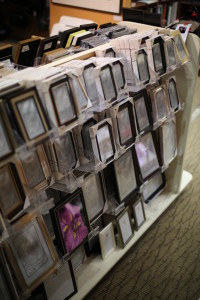
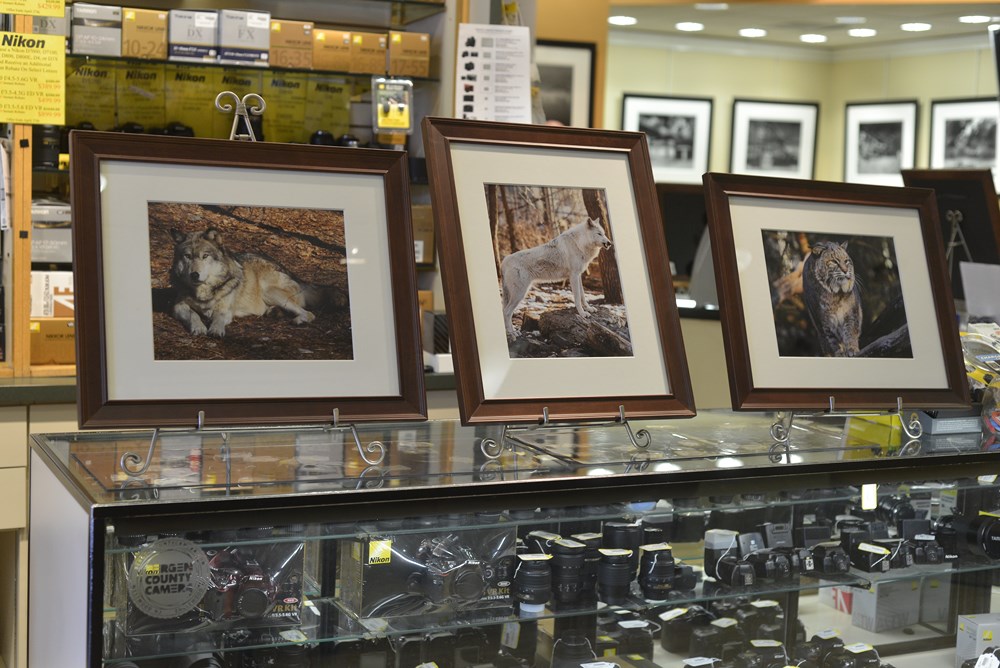
Bergen County Camera and Gallery 270 owner, Tom Gramegna, recently was interviewed by The Bergen Record about matting and framing photos. Check out the article featured on the front cover of the Homes Section and continued on Page 7. Bergen County Camera stocks a wide selection of both frames and mattes in a variety of sizes, colors, and materials. Plus, this holiday season, all table top frames are buy 2 get 20% off, buy 3 get 30% off! If you purchase a print with us, all mattes are also 10% off. Remember “It’s not a photograph until it’s printed.”
Tomorrow, November 30, 2013 is Small Business Saturday!
Register with your American Express Card and American Express will credit your account $10 with a purchase of $10 or more at any qualifying small business. Plus, Bergen County Camera is going to double your savings in celebration of Small Business Saturday.
Stop in this Saturday and Bergen County Camera will take $10 off any purchase of $25 or more, even if you are not using an American Express Card!
All you have to do is follow us on Facebook, be signed up for our e-mail newsletter, or sign up for our e-mail newsletter while here! That’s a combined savings of $20 on any purchase of $25 or more this Saturday only, November 30, 2013 if you register your American Express Card.
Please note the $10 American Express Credit is applied to your American Express Account not taken off at the register. Registration is necessary and limited. Be sure to sign up!
Focus sessions are free and take place in the Westwood store from 9:30 am – 10 am. All sessions will allow for questions and answers. Please bring your camera and any images along that you have questions about. Feel free to use the comment option to make suggestions for future focus sessions.
Hit the “Like Button” to let your friends know. Have suggestions for future focus sessions? Feel free to leave a comment. (Comments actually work now!)
Here’s our upcoming Focus Sessions:
November 28 – No Focus Session
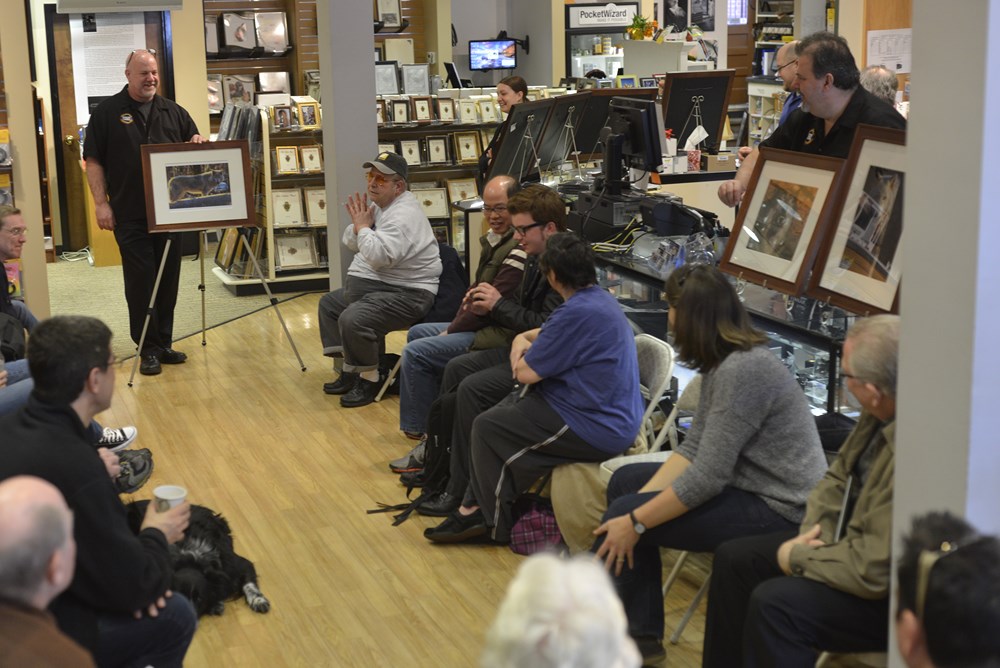
December 7 – Lakota Wolf Trip Review
December 14 – Wish list for Santa
December 21 – Winter Photography
December 28 – End of Year Focus Session Celebration – Paul says “It’s a surprise”
These are free events – bring a friend along if you’d like. Share with your friends on Facebook – Click the Like button below. Hope you can join us!