Bergen County Camera

Blog

Archive for the ‘Better Pictures’ Category

Fireworks Photography tips and examples

with one comment

Here are some basic starting points

If you have any questions, stop by the store, email or call. We’re here to help. Please let us know if you get some great shots we’d love to see!
Please feel free to leave your comments and suggestions. Have a great 4th of July Holiday weekend from all of us at BCC.

Find a fireworks display on NJ.com’s July 4th events page

Tripod
Electronic release (available for most cameras at BCC)
Manually set your camera ISO to 100 (You do not want Auto ISO)
Lens Choice – Wide Angle Zoom to frame what you’d like to capture
Auto White Balance or Daylight
Set your lens to manual focus then focus to infinity (take a test image and make sure things are sharp)
Set your camera to Manual exposure – Try 5 seconds at f/ 16
Carefully release the shutter if not using a release to capture from one to several bursts
Evaluate your exposure - Shorter exposures (or smaller aperatures ) will darken the image and capture shorter trails, Longer exposures (or larger aperatures ) will lighten the image and capture longer trails.
Evaluate sharpness by zooming in on your image – adjust as needed

If you are using a point a shoot, check your camera’s manual for fireworks mode.

Improving Fireworks photos
Shoot with a tripod – it will give a more natural cascade of light

Why use a tripod?

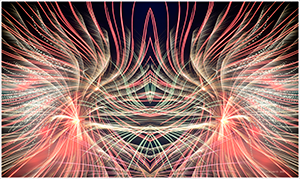
Handheld image above shows motion from camera shake  in the burst of light.

The image below is steadied by a tripod, 5 seconds, f16 at 100 ISO


Other Techniques
Set your camera to B and lock open your shutter – keep the lens covered with a dark hat and remove the hat to capture a burst then recover and repeat to capture several bursts. Just be carefull not to bump your camera.
You can even zoom the lens during exposure for some interesting effects

Experiment and best of all have fun

Gallery images below shot mainly at 5 seconds, f16 at 100 ISO

Written by John Tworsky

July 1st, 2010 at 12:56 pm

Lunar Photography – getting the correct exposure

without comments

Man in the Moon

"Man in the Moon" taken during a partial lunar eclipse

Next Full Moon – March 29, 2010 

I recently had a customer ask me the best way to photograph the moon. It seems that they never could see any detail in the moon (overexposed) and the overall image was dark.  First, the moon is much brighter and takes up a small portion of the image – the camera meter gets fooled since it sees all the darkness and sets an exposure that washes out the moon. Second the variation between light and dark values is beyond what your camera is capable of capturing in a single shot. We’ll talk about a fix to this problem later on . . . a little trick that involves using an imaging program like Photoshop Elements.   

To capture the full “Man in the Moon” effect is easy to do by setting your camera manually to expose for the moon.  We set the camera manually because your camera’s metering system usually gets fooled.   Setting your camera manually eliminates this exposure error – the moon is always lit with the same intensity with the exception of solar eclipses.  

For the complete “Man in the Moon” look, we suggest the following exposure – ISO 100 -1/125th second @ f/11When the moon is not full it is also very easy to get your exposure. Since a half moon is half as bright you just need to open your lens up by one more stop which lets twice a much light in – ISO 100 – 1/125th second @f/8. Using the same convention a 1/4 moon would require 4x as much light as the full moon or 2 stops more light and a setting of  1/125th second @ f/5.6. A tripod is always a great option for the sharpest shots especially when using a telephoto lens.   

Black Cat Exposure Guide
A Black Cat exposure guide (pictured above) is a great tool that lists manual exposure settings for more than 100 scenes. Just choose your scene – line up the scene code to your ISO and just set your camera to one of the displayed f-stop and shutter speed combinations. The Black Cat Exposure Guide is a must for anyone into time exposure and existing light photography. We stock the Black Cat Exposure Guide in Westwood & Englewood.  

Getting both the moon and your scence exposed correctly in the same image is easily accomplished by compositing a properly exposed image of the moon with a properly exposed night scene in a program like Photoshop Elements. 

Questions – Stop by, email or give us a call.  Comments? Let us know if you liked this post. What other things you would like tutorials about?

Written by John Tworsky

March 23rd, 2010 at 2:12 pm

How to get white snow – Winter shooting tips

without comments

Why are my snow pictures dull grey?

Here’s the first in some winter picture taking tips that we are putting together. A common complaint we hear when people bring their winter pictures in is – “my pictures look dull,” “the snow looks grey, not white.”   Read on for the short and the long answer.

White snow with camera at plus 1 
The picture you see is the one above with white snow . . .
 
The picture your camera captures has grey snow as shown below.
Why is my snow grey   
 
So the question is – How do I get white snow?
 
The short answer is you need to overexpose by using the Exposure Compensation +/- feature on your camera. Using the exposure compensation automatically makes this adjustment so your camera still can remain fully automatic. In the case of a Nikon you would press the +/- button while rotating the control wheel until +1.0 shows in the display. Your owners manual will explain this in detail or feel free to stop by the store to learn how to make the settings on your camera. Be sure to take some test shots so you get the hang of how this works. If less of your image is taken up with the snow you can try the + 0.7 or + 0.3 setting to reduce the brightening effect.
 
After taking your snow photos just remember to turn the exposure compensation +/- back to zero.

The more technical answer

This is all caused by a camera’s meter system which is designed to see “18% grey” ( the solid gray image to the left ). Essentially anytime you take a picture that is predominantly white or black the camera will make the wrong exposure. Since the cameras meter can only see grey, an “average scene”, we only need to make adjustments when our scene is predominantly white or black. Luckily 98% of what most of us shoot are scenes with average lighting values and need no adjustment.
 
Predominantly white scenes ( think Snow, white sand beaches, clouds )will be moved toward grey so we must over expose from .5 – 1.5 stops to get true white by using the +/-.
 
Predominantly black scenes ( think black cars, black buildings, black sand beaches )will be moved toward grey so we must under expose .5 – 1.5 stops to get true black by using the +/-.
 
 A future tutorial will explain how to get perfect exposures using a grey card.


Using histograms to further understand

For those familiar with histograms we can further look into diagnosing our exposure. The histograms are shown below with both our camera exposure and with exposure compensation set on + 1.0. Histograms are available in almost any digital camera including point and shoots and most imaging programs like Photoshop Elements.

A histogram is just a map of the tonal values in our image from black (left most point) to white (right most point) with the height representing how much of the image is at a particular level of brightness. Your histogram will look the same in camera and when you open that image up in your imaging program.


^Black                   Middle^Grey                        White^

Grey snow historgram - normal exposure 

In the grey snow example above our histogram has a good deal of room before the white point on the right so the image represented by this histogram is a shade of grey not white. By overexposing one stop ( +/- +1.0) the camera automatically adjusts and allows 1 extra stop or twice the amount of light. As you can see from the histogram below we still have a small amount of room before the white point (this room indicates we have not blown out our highlights. If this histogram started all the way to the right and did not build to a peak, this would indicate over exposure and blown out highlights. The fix would be to reduce the exposure compensation from +1.0 to +0.7 and check again. The peak will move to the left each time you reduce your exposure. More on histograms in an upcoming tutorial.

White snow when overexposed histogram  

Please let us know what you think of this tutorial and let us know what else is causing a challenge in your photography.


Written by John Tworsky

March 1st, 2010 at 5:46 pm